
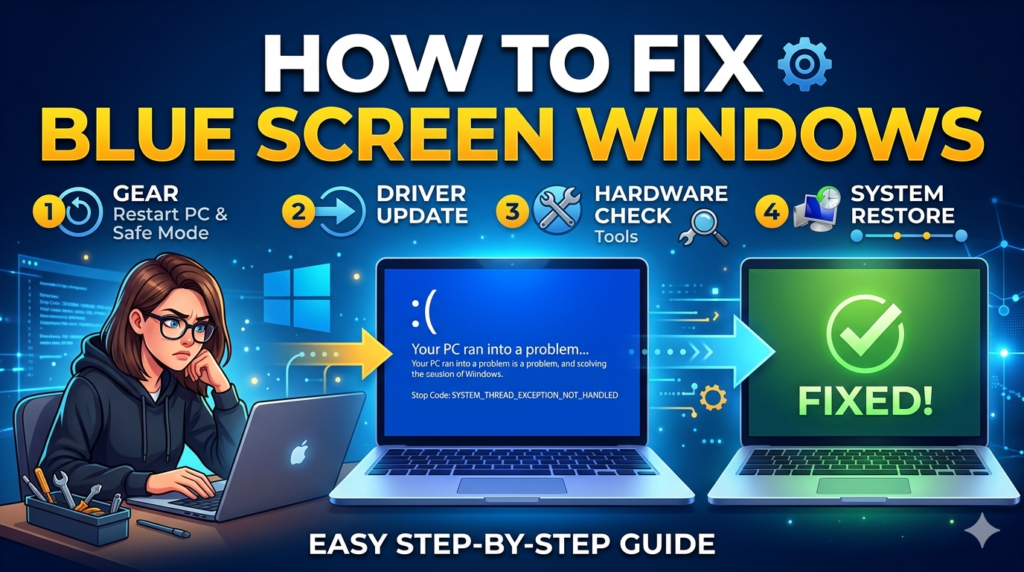
When your computer suddenly crashes to a blue screen, it can be frustrating and confusing. For users of Windows 10 and Windows 11, this problem often raises worries about system stability and possible data loss. Fortunately, most blue screen errors can be identified and fixed with the right approach. In this guide, we will show you the common causes and effective solutions to help you recover your system quickly and safely.
To resolve blue screen of death (BSOD) issues without losing data, you can follow these troubleshooting steps:
- Boot into Safe Mode: Restart your computer and repeatedly press the F8 key, or Shift + F8, before Windows starts loading. This should show the Advanced Boot Options menu. Select “Safe Mode” to start in a minimal environment.
- Remove Recent Changes: If you recently added new hardware or software, try uninstalling it. This includes any new drivers that might be causing problems.
- Update Drivers: If you can get into Safe Mode, open Device Manager and look for any devices with a yellow exclamation mark. Update the drivers for these devices.
- Run Hardware Diagnostics: Use any built-in hardware diagnostic tools from your computer manufacturer to check for hardware issues.
- Check for Disk Space: Make sure your hard disk has enough free space, ideally 10-15%. Not having enough space can cause system instability.
- Run Memory Diagnostics: Use the Windows Memory Diagnostics tool to check for memory issues. You can find it by searching for “Memory” in the Control Panel and selecting “Diagnose your computer’s memory problems.”
- Scan for Viruses: Run a virus scan with an anti-malware tool to check for any infections that could be corrupting your system.
- Check Event Viewer: If you can get into Safe Mode, check the Event Viewer for any critical errors that happened around the time of the BSOD. This can help pinpoint the faulty driver or hardware.
- System Restore: If you have System Restore enabled, you can go back to a time before the BSODs started happening.
- Windows Recovery Environment: If you cannot start in Safe Mode, you may need to access the Windows Recovery Environment (WinRE) using a recovery drive or installation media. From there, you can try to repair your system or restore it.
- These steps should help you troubleshoot and possibly fix the BSOD issues without losing your data.
Fix Blue Screen Error Solution
Fix Blue Screen (BSOD) errors by restarting your PC, removing recent hardware or software, running Windows Update, or using Safe Mode to uninstall faulty drivers. Key fixes include running sfc /scannow in Command Prompt to repair system files and using Startup Repair from the Troubles